

Session Page#
In Backend.AI, a session represents an isolated compute environment where users can run code, train models, or perform data analysis using allocated resources.
Each session is created based on user-defined configurations such as runtime image, resource size, and environment settings.
Once started, the session provides access to interactive applications, terminals, and logs, allowing users to manage and monitor their workloads efficiently.
Resource Summary Panels#
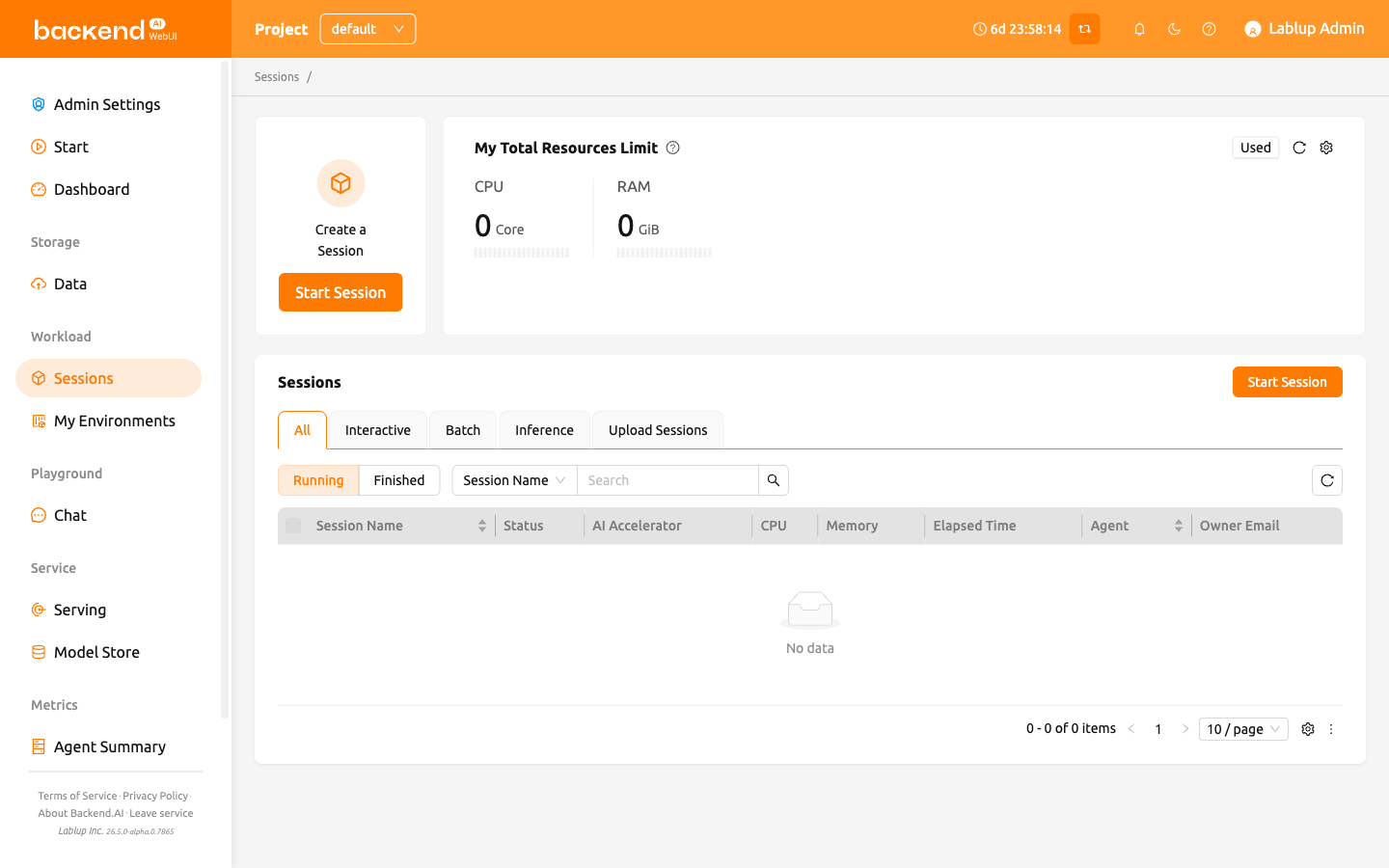
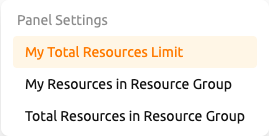
At the top of the 'Sessions' page, you can find panels displaying your available computing resources such as CPU, RAM, and AI Accelerators. Different panel views — 'My Total Resources Limit', 'My Resources in Resource Group', and 'Total Resources in Resource Group' — can be selected depending on the information needed. Use the 'Settings' button to change which panel is displayed.
For more detailed information about resource panels and their metrics, please refer to the dashboard page.
Session list#
The 'Sessions' section displays a list of all active and completed compute sessions.
You can filter sessions by type — All, Interactive, Batch, Inference, or Upload Sessions — and switch between
Running and Finished tabs to manage sessions.
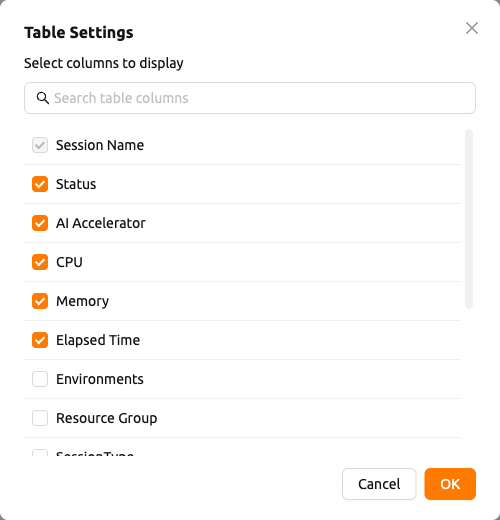
By default, you can view the following columns: session name, status, allocated resources (AI Accelerators, CPU, Memory), elapsed time, and for super admins, agent and owner email. Additional columns can be shown or specific ones hidden by clicking the 'Settings' button at the bottom right of the table to customize the view.
From Backend.AI Manager v26.2.0, you can view the detailed scheduling history for each session from the session detail panel. This helps you understand scheduling decisions, delays, and failures. For more details, refer to Session Scheduling History.