

Start Page#
The Start page provides quick access to frequently used WebUI features through action cards. Each card represents a common workflow such as creating storage folders, launching sessions, starting model services, or importing projects from external URLs.
Announcement Banner#
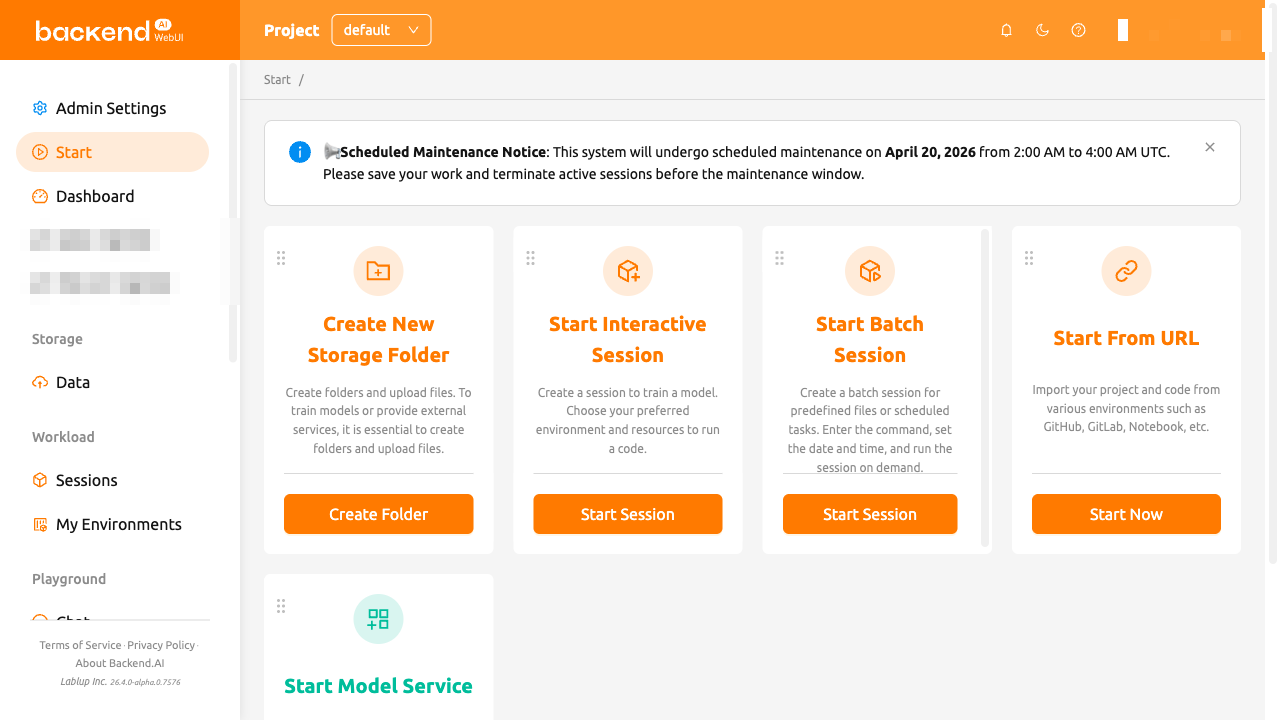
If your system administrator has published an announcement, it appears as a banner at the top of the Start page. The announcement supports Markdown formatting and may contain important notices about system maintenance, updates, or usage guidelines. You can dismiss the banner by clicking the close icon.
Action Cards#
The Start page displays the following action cards by default:
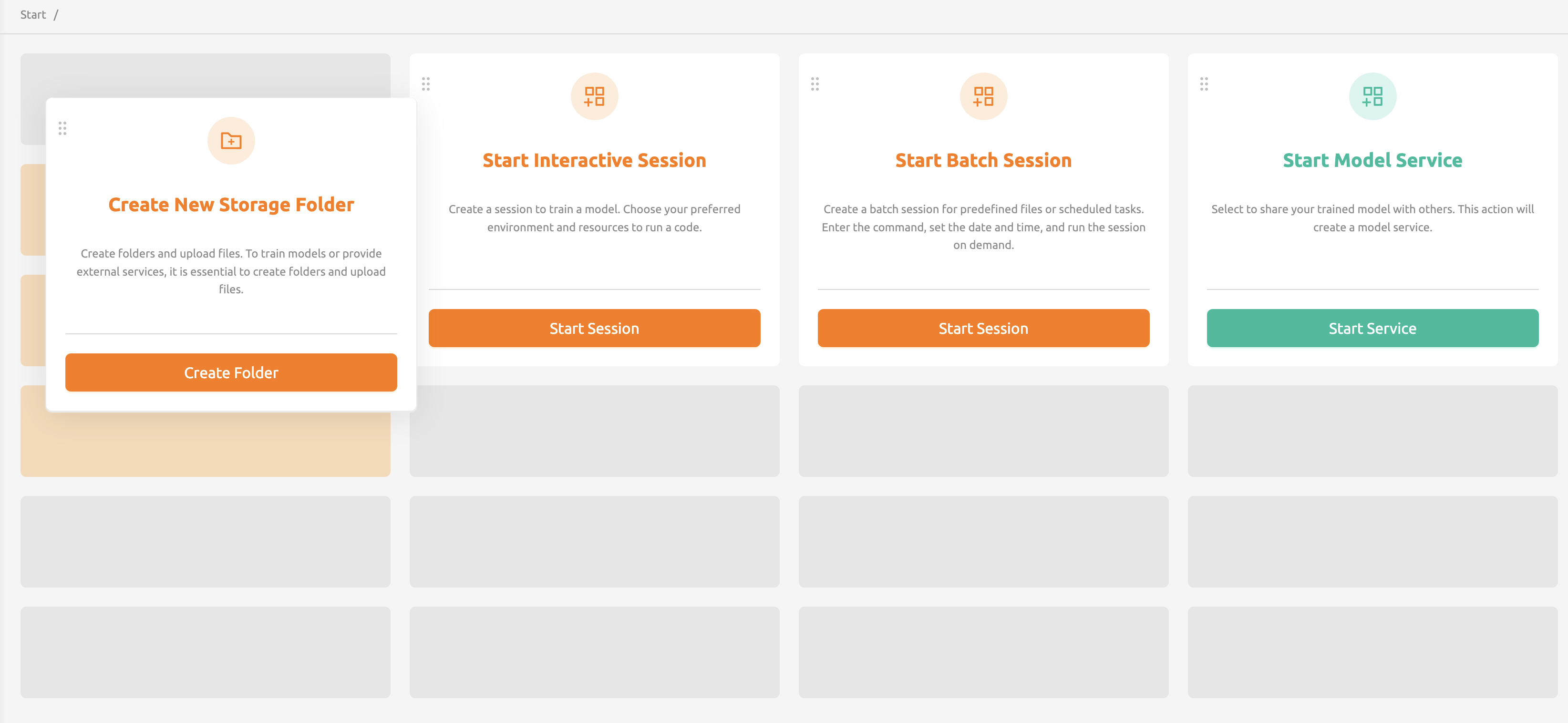
- Create New Storage Folder: Create a storage folder and upload files. This is an essential first step for training models or providing external services. Clicking the button opens the folder creation dialog.
- Start Interactive Session: Create a session to train a model. Choose your preferred environment and resources to run your code.
- Start Batch Session: Create a batch session for predefined files or scheduled tasks. Enter the command, set the date and time, and run the session on demand.
- Start Model Service: Select a trained model to share with others by creating a model service endpoint.
- Start From URL: Import your project and code from various environments such as GitHub, GitLab, or Jupyter Notebooks via URL.
Depending on the server configuration, some cards such as the model service card may not be available. If you want to use these features, please contact your system administrator.
Start From URL#
The Start From URL card allows you to import and run projects directly from external sources. Clicking the card opens a dialog with three tabs.
Import Notebook#
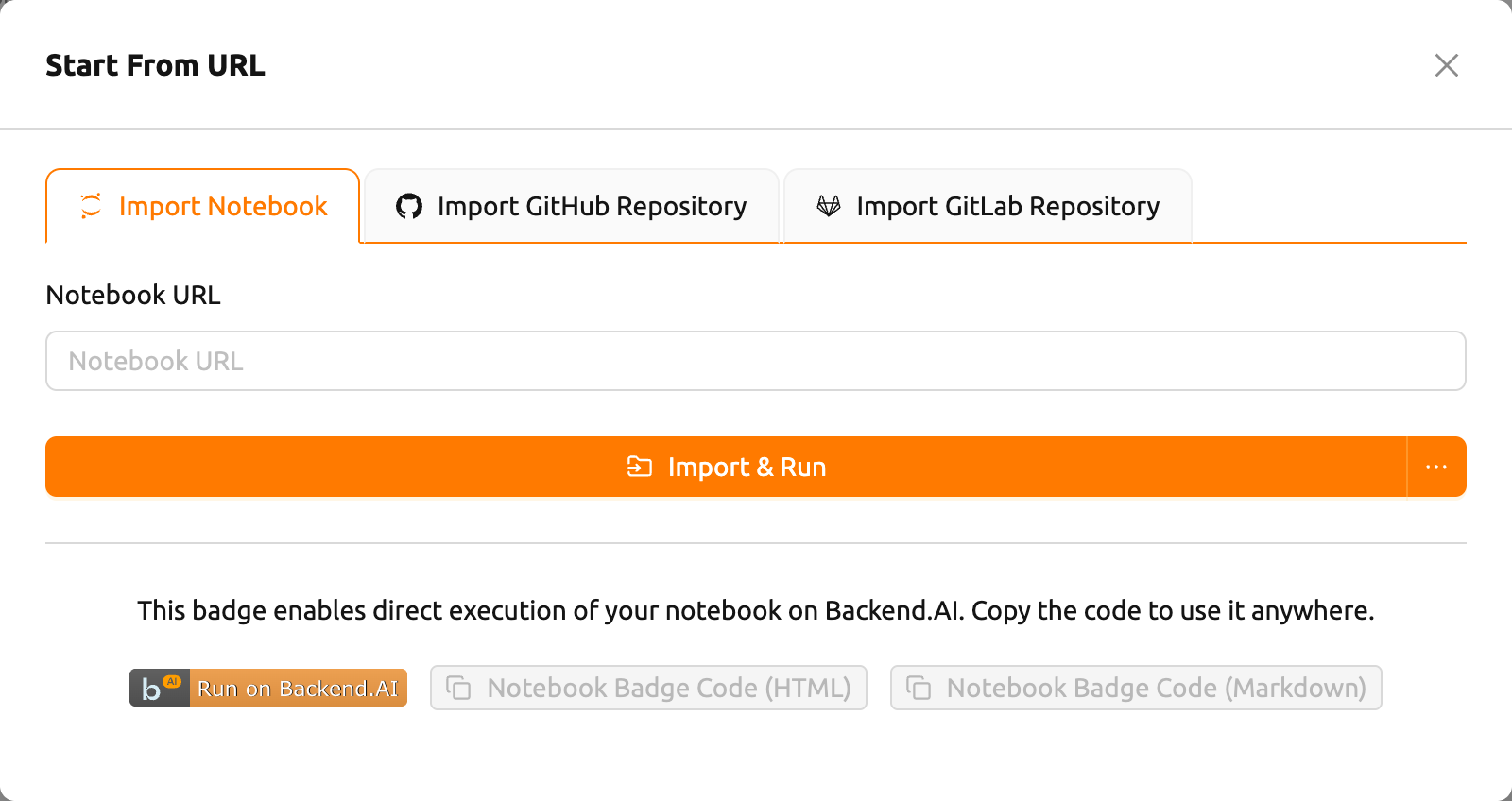
Enter a Jupyter Notebook URL (must end with
.ipynb) in the Notebook URL fieldClick Import & Run to automatically create a session and open the notebook in Jupyter
You can also click the dropdown arrow next to the button and select Start with options to customize the session environment before launching.
At the bottom of the tab, you can generate a "Run on Backend.AI" badge code. Copy the HTML or Markdown badge code to embed a direct-launch link in your project documentation.
Import GitHub Repository#
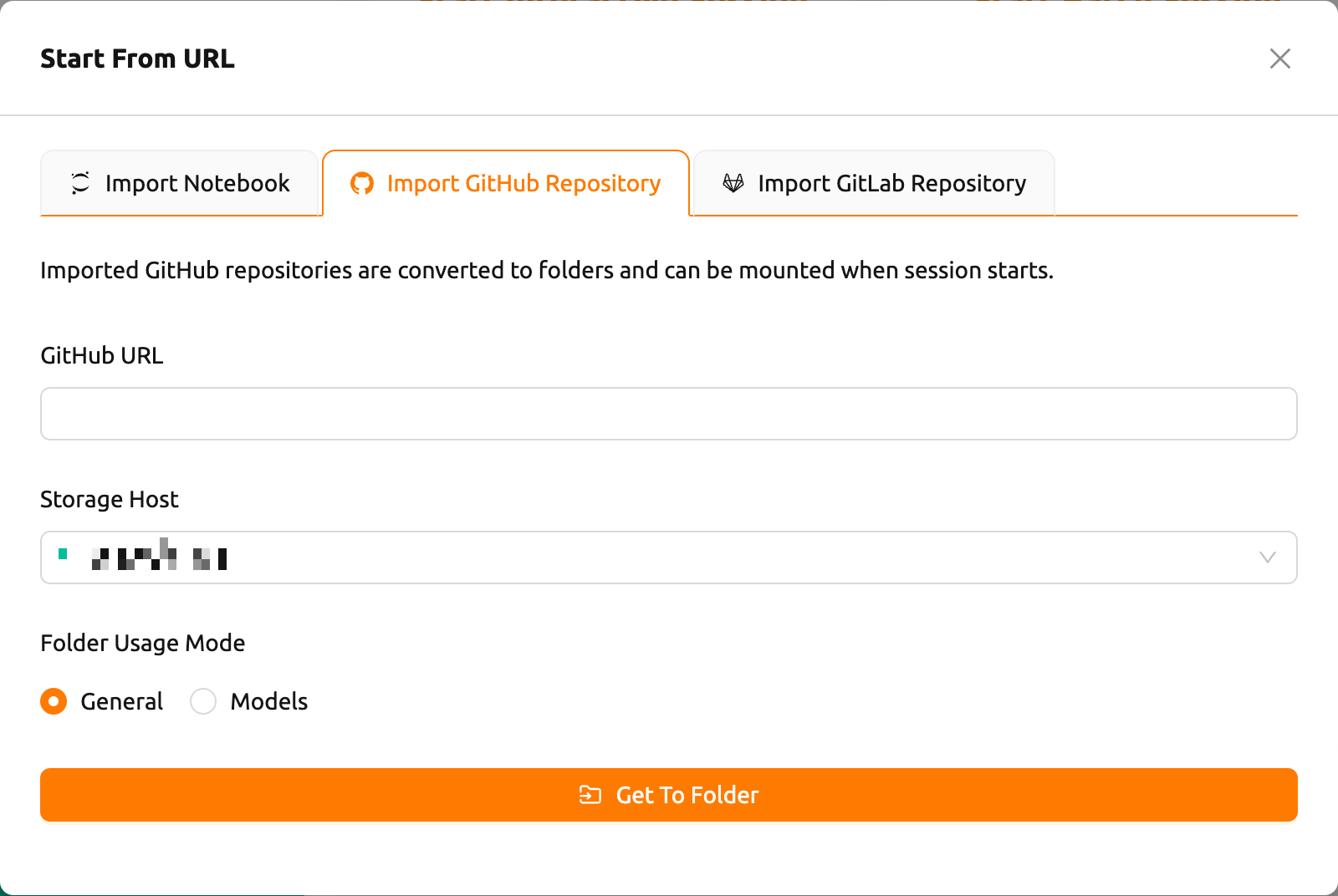
- Enter a valid GitHub repository URL in the GitHub URL field
- Select a Storage Host where the repository will be saved
- Optionally set the Folder Usage Mode (General or Models)
- Click Get To Folder to clone the repository into a new storage folder
The imported repository is converted to a storage folder that can be mounted when starting a session.
Import GitLab Repository#
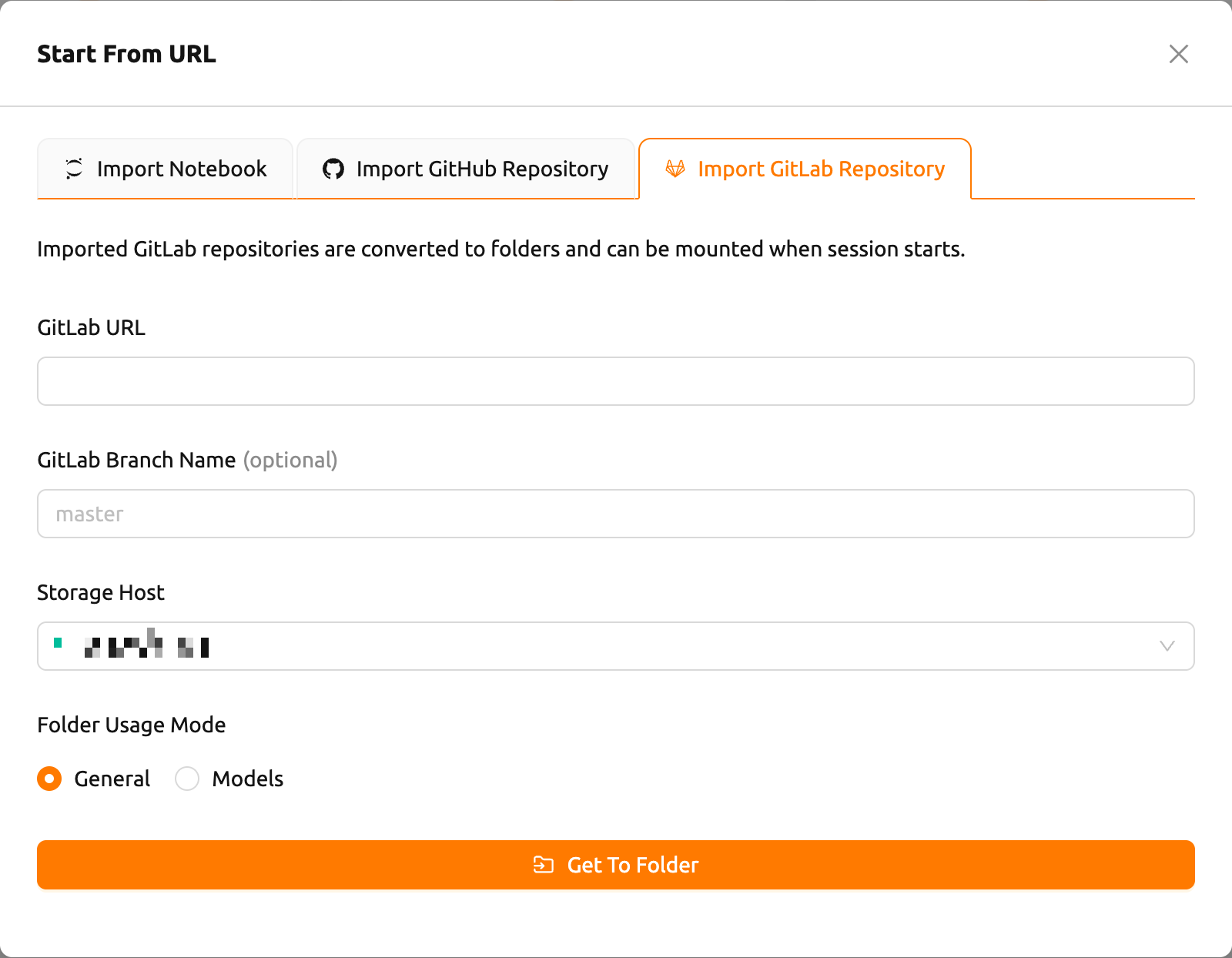
- Enter a valid GitLab repository URL in the GitLab URL field
- Optionally specify a GitLab Branch Name (defaults to
master) - Select a Storage Host where the repository will be saved
- Optionally set the Folder Usage Mode (General or Models)
- Click Get To Folder to clone the repository into a new storage folder
Customizing Card Layout#
You can rearrange the action cards on the Start page by dragging and dropping them. Each card has a drag handle at the top-left corner that you can grab to move the card to a different position.
Your customized card arrangement is automatically saved and persists across browser sessions. The layout is stored per user, so each user can have their own preferred arrangement.